


AI Video Editor - Vidma Cut AI
4.62.88K Reviews
App Specs
- Version
- 2.29.0
- Updated On
- License
- Free
- Downloads
- 50,000,000+
- Developer
- Vidma Video Studio
- Categories
- Video Players & Editors
- Platform
- Android, iOS
Screenshots
 Analysis by AppCompare
I like starting a mobile-editing project with one clear question: what should the finished clip make someone notice? With AI Video Editor - Vidma Cut AI, that keeps the process focused. It is a video editing app from Vidma Video Studio, and its AI-oriented tools are aimed at making quick, shareable edits less laborious. I’d reach for it when I have a handful of phone clips and want to shape them into something watchable without settling in for a full desktop-style edit.
That convenience has a trade-off: automated suggestions can speed up decisions, but they do not know which moment matters to you. I treat them as a starting point, then review the result with the sound on and make sure the pacing suits the story. That small habit is more useful than expecting any editor to choose the perfect cut automatically.
First Impressions and Ease of Use
The first thing that struck me about Vidma Cut AI is its super clean and intuitive interface. You know how some apps just overwhelm you with options and buttons? Not this one. It's like the developers had a zen approach to design. Everything’s where you’d expect it to be, which makes diving into video editing less of a chore and more of a fun activity.
Once you open the app, you're greeted with a quick tutorial that runs you through the basics. Even if you're a newbie, you'll feel like a pro in no time. The drag-and-drop functionality is smooth and feels just right, especially on a mobile device.
Features That Stand Out
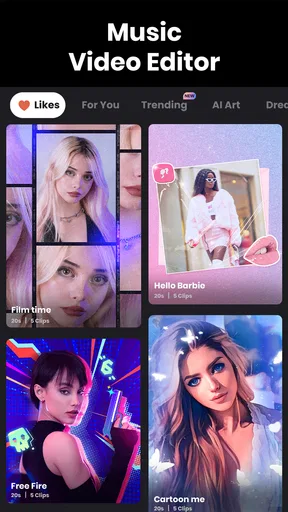
Now, let's talk about the features. One word: impressive. The app leverages cutting-edge AI technology to make your editing process a breeze. Here are a few highlights:
- Auto-Cut: This feature is a lifesaver. The AI automatically identifies the best parts of your video, helping you trim and cut without breaking a sweat.
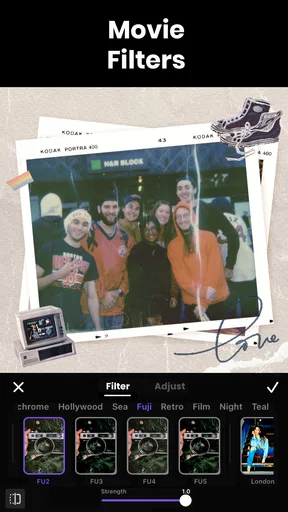
- Smart Filters: With a tap, you can apply suggested filters that enhance your video based on the content. It's like having a personal video stylist.
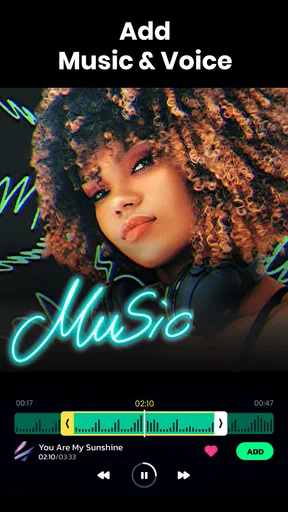
- Music Sync: This is where AI shines. The app can automatically sync your video’s cuts to the beat of your chosen music track. No more painstaking manual edits!
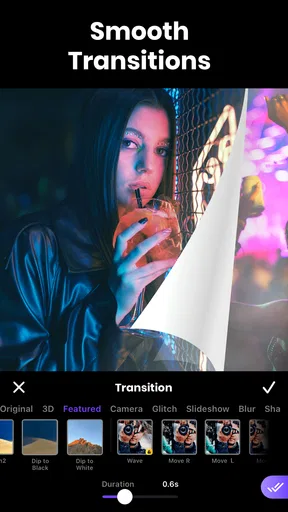
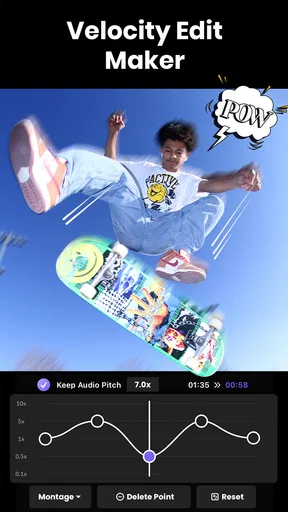
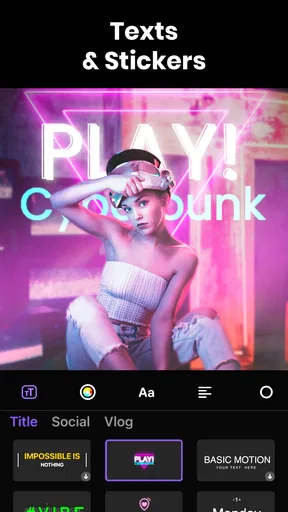
In addition to these, the app offers a variety of transitions, text overlays, and special effects that are easy to apply and customize. The real-time preview feature lets you see changes instantly, which is crucial for making those quick tweaks.
A Repeatable Workflow for Everyday Clips
For a practical routine, I’d first pick the clips that support one small story rather than importing every shot from the day. A short sequence of making coffee, for instance, can work better than a long reel of unrelated kitchen footage. I’d try Auto-Cut to find a rough rhythm, then watch the suggested sequence through before adding text or effects. The point is to use automation to narrow the choices, not to hand over the whole edit.
Worth Reading Before You Choose

Flipboard Shows What News Apps Must Do Beyond the Feed

Switching to Android Auto Means Rethinking Your Driving Routine

Google Calendar Makes a Crowded Week Easier to Manage

Ludo King Makes the Most of the Minutes Between Plans

Baby Panda World Brings Quick Play to Modern Phones, but Its Game Library Feels Busy

ESPN’s Live Game View Makes Following Close Games Easier
For a family moment or a casual social post, I’d choose the music after deciding what the clip is about. Music Sync can help establish a beat, but a cut that lands on a beat is not automatically the right cut. If a reaction, gesture, or punchline falls just after the musical accent, preserving that moment matters more than perfect timing. I’d adjust the sequence around the important action and use the soundtrack as a guide rather than a rule.
Settings and Small Checks That Save Rework
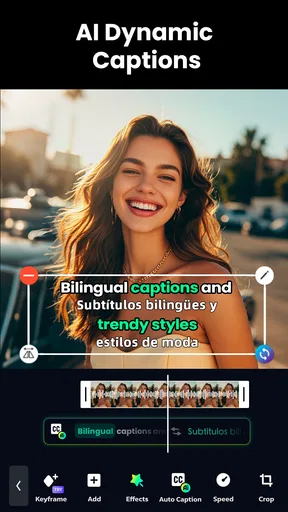
Before polishing an edit, I’d check the framing and playback from beginning to end. A filter that looks appealing on one shot can make a neighboring clip feel noticeably different, so I’d apply a look selectively and compare the result in the preview. Text deserves the same care: keep it brief, place it where it does not compete with the main subject, and play the clip at normal speed to check that it stays readable.
Music also needs a final listen, not just a visual check. I’d watch once with the sound on and ask whether the track supports the mood, whether the cuts feel rushed, and whether any important speech or ambient sound is being lost. If the video is meant to be understood without sound, I’d make sure its text and sequence still carry the point. These checks are simple, but they prevent an attractive effect or beat-matched edit from distracting from the actual moment.
Performance and Reliability
Performance-wise, the app runs smoothly on both Android and iOS platforms. I tested it on a mid-range Android phone and an iPhone, and there was no lag or crashes, which is quite impressive for an app packed with so many features. The developers seem to have optimized it well, ensuring it runs efficiently without draining your battery like a vampire.
The export process is also a breeze. You can save your masterpiece in various formats and resolutions, making it easy to share on social media platforms or just keep it in your gallery.
Where It Fits Among Mobile Editors
Compared with a basic gallery editor, Vidma is the more appealing choice when I want a sequence with music, transitions, and a deliberately styled finish rather than a quick trim or crop. Compared with a traditional timeline editor, its guided, AI-assisted approach can feel less demanding for a short social clip, but it is not the approach I’d choose when I want careful control over every edit decision. Those are different jobs, and the simpler route is not automatically better for every project.
I’d recommend it most to people who make occasional short videos and want help moving from raw clips to a coherent draft. It is less suited to someone who enjoys detailed, frame-by-frame editing or needs a predictable, highly controlled process for a complex project. In that case, a more manual editor is worth considering; creative control is more important than saving a few steps.
When a Quick Edit Becomes a Habit
Picture a familiar scenario: I’ve filmed a few moments from a weekend walk and want to send a short recap to friends that evening. Instead of filling the project with every clip, I select a few distinct moments, use an automated cut as a first pass, and check whether the order makes sense without the music. Then I add a track, preview the transitions, and remove anything that makes the story harder to follow. That workflow keeps the edit personal while still benefiting from the app’s shortcuts.
A repeatable habit also means keeping the original footage untouched until I know I’m happy with the result. I’d treat the edited version as a separate shareable piece, not as a replacement for the clips that might be useful later. That is especially helpful when a first draft is only a playful experiment and I may want to make a quieter or shorter version for a different audience.
Limits, Cost, and Who Should Choose It
The app is free to download, with in-app purchases ranging from around fifty cents to about ninety dollars per item. I’d try the core workflow before spending anything: the best way to judge whether its style suits you is to edit a real clip, not to assume that every paid option will improve your results. The broad price range also makes it sensible to inspect an individual purchase carefully before confirming it, especially if you only need an editor now and then.
It is rated for Everyone, has a 4.6 average from around 376,000 ratings, and has passed 50 million installs. Those figures suggest that many people have tried it, but popularity cannot tell me whether its editing approach matches my own. I’d base the decision on whether the tools make my usual clips easier to finish, and whether the available controls are enough for the level of precision I want.
For someone choosing between this and a very simple trim tool, the deciding question is whether music-led edits, styling, and transitions are worth having in one mobile workflow. If all I need is to remove the start and end of a clip, a phone’s built-in editor may be quicker. If I want to assemble a short sequence and give it a more deliberate feel, Vidma has a clearer purpose. The current version is 2.25.1, and it supports devices running Android 9 or later.
Community and Support
One of the things I love about Vidma Cut AI is the sense of community it fosters. There’s a built-in feature where users can share tips and tricks, which is great for learning new editing techniques. Plus, the support team is responsive. I had a question about a feature, shot them an email, and got a helpful response within a few hours.
There's also a vibrant community on their forums and social media pages where users share their creations. It's inspiring to see what others are doing with the app, and it pushes you to get creative too.
Final Thoughts
So, is AI Video Editor - Vidma Cut AI worth it? Absolutely. Whether you're an amateur looking to spice up your Instagram stories or a professional needing a reliable editing tool on the go, this app delivers on all fronts. It's not just about the features but how seamlessly they integrate into the workflow, making video editing not just easy but also enjoyable.
If you're on the fence, I'd say give it a try. It's free to download, and the premium features are reasonably priced, offering great value for the functionality they provide. So go ahead, unleash your creativity and see what amazing videos you can create with this powerhouse of an app!
Pros
- Intuitive interface for easy editing.
- Wide range of AI-powered effects.
- Quick rendering and export times.
- Supports multiple video formats.
- Robust tutorial and help section.
Cons
- Limited free version features.
- Occasional AI effect glitches.
- High system resource usage.
- Subscription can be pricey.
- Frequent in-app notifications.
FAQs for AI Video Editor - Vidma Cut AI
What features does Vidma Cut AI offer for video editing?
Vidma Cut AI provides an array of advanced features, including AI-powered video enhancements, automatic scene detection, and customizable templates. Users can also access a variety of filters, transitions, and music tracks to elevate their videos. The intuitive interface ensures that even beginners can create professional-quality content with ease.
Is Vidma Cut AI suitable for beginners in video editing?
Yes, Vidma Cut AI is designed to be user-friendly, making it an excellent choice for beginners. The app's intuitive interface and AI-guided tools simplify the editing process, allowing users to easily navigate through features and create polished videos without prior experience.
What are the system requirements for using Vidma Cut AI?
Vidma Cut AI is compatible with both Android and iOS devices. For optimal performance, it's recommended to have a device running Android 8.0 or later, or iOS 12.0 or later. Ensure you have enough storage space and a stable internet connection for seamless video processing and updates.
Are there any in-app purchases or subscriptions in Vidma Cut AI?
Vidma Cut AI offers a free version with basic features. However, for access to premium tools and content, users can opt for in-app purchases or a subscription plan. The subscription unlocks advanced features, additional templates, and an ad-free experience, enhancing the overall editing capabilities.
How does Vidma Cut AI ensure user privacy and data security?
Vidma Cut AI prioritizes user privacy by implementing robust security measures. The app encrypts user data and complies with privacy regulations to safeguard personal information. Additionally, users have control over their content and can manage privacy settings within the app to ensure a secure editing experience.


